With the tooltips available with LiveCycle Designer there is no options to add formatting to a tooltip. You can try using a subform and dynamically position it next to the field, like this sample Season Planner (or Year Planner) PDF Template.
One thing you can do is add some carriage returns to add some vertical space. For a long time I was doing this by editing the XML Source and adding a carriage return character "
" in the toolTip value.
But you can do the same thing from the Accessibility palette by using a ctrl-Enter key combination.
Seems everywhere you can enter a rich text value you can use shift-Enter but maybe because the Tool Tip value in the Accessibility palette is not rich text we have to use ctrl-Enter.
You can also gain some control over the tooltip width by using a non-breaking space (Ctrl-Shift-Space, which inserts a 0xc2a0 character) instead of a normal space.
Wednesday, 28 January 2015

Saturday, 10 January 2015
Custom Bulleted and Numbered Lists
With LiveCycle Designer ES3 came support for bulleted and numbered lists under the Paragraph palette. This did make creating lists a lot easier but also added some restrictions;

What you might have been after


This sample PDF Form makes to easy, just enter the text of your dot points, select the type of bullets or numbers, the spacing and if you want leaders or not and the Draw element (which implements the Text object) is output to the console.
You should see something like;
<draw name="Text1" w="196.85mm" minH="0in" xmlns="http://www.xfa.org/schema/xfa-template/3.6/">
<value>
<exData contentType="text/html">
<body xmlns="http://www.w3.org/1999/xhtml" xmlns:xfa="http://www.xfa.org/schema/xfa-data/1.0/"><p style="text-indent:-10mm;xfa-tab-stops:left leader (dots page 3pt) 10mm"><span style="font-size:9pt">1.</span><span style="xfa-tab-count:1"/><span style="font-size:9pt">Oranges</span></p><p style="text-indent:-10mm;xfa-tab-stops:left leader (dots page 3pt) 10mm"><span style="font-size:9pt">2.</span><span style="xfa-tab-count:1"/><span style="font-size:9pt">Apples</span></p><p style="text-indent:-10mm;xfa-tab-stops:left leader (dots page 3pt) 10mm"><span style="font-size:9pt">3.</span><span style="xfa-tab-count:1"/><span style="font-size:9pt">Bananas</span></p></body>
</exData>
</value>
<ui>
<textEdit allowRichText="1"/>
</ui>
<font typeface="Myriad Pro"/>
</draw>
To add this to your form it might be easiest to add a Text object in the place you need, select it, then switch to the XML Source view. You should see a <draw>...</draw> element, which you can replace with the one copy and pasted from the JavaScript console.
The sample to generate the Draw element is Bullets.pdf.
A form containing samples of ES3 and customs bullet/number lists and how NVDA reads them is NVDA.Bullets.pdf.
- There is always a 0.5in margin added to the list, see List Layout (XFA Spec 3.3) for more details
What you might have been after
- There is no option to add a leader (dots between the bullet/number and the text)
- When read by a screen reader like NVDA the bullet characters or numbers are not announced. In the example in the first dot point above, NVDA announces "What is your favourite fruit Apples Oranges Bananas" when what you probably wanted was "What is your favourite fruit bullet Apples bullet Oranges bullet Bananas"
This sample PDF Form makes to easy, just enter the text of your dot points, select the type of bullets or numbers, the spacing and if you want leaders or not and the Draw element (which implements the Text object) is output to the console.
You should see something like;
<draw name="Text1" w="196.85mm" minH="0in" xmlns="http://www.xfa.org/schema/xfa-template/3.6/">
<value>
<exData contentType="text/html">
<body xmlns="http://www.w3.org/1999/xhtml" xmlns:xfa="http://www.xfa.org/schema/xfa-data/1.0/"><p style="text-indent:-10mm;xfa-tab-stops:left leader (dots page 3pt) 10mm"><span style="font-size:9pt">1.</span><span style="xfa-tab-count:1"/><span style="font-size:9pt">Oranges</span></p><p style="text-indent:-10mm;xfa-tab-stops:left leader (dots page 3pt) 10mm"><span style="font-size:9pt">2.</span><span style="xfa-tab-count:1"/><span style="font-size:9pt">Apples</span></p><p style="text-indent:-10mm;xfa-tab-stops:left leader (dots page 3pt) 10mm"><span style="font-size:9pt">3.</span><span style="xfa-tab-count:1"/><span style="font-size:9pt">Bananas</span></p></body>
</exData>
</value>
<ui>
<textEdit allowRichText="1"/>
</ui>
<font typeface="Myriad Pro"/>
</draw>
To add this to your form it might be easiest to add a Text object in the place you need, select it, then switch to the XML Source view. You should see a <draw>...</draw> element, which you can replace with the one copy and pasted from the JavaScript console.
The sample to generate the Draw element is Bullets.pdf.
A form containing samples of ES3 and customs bullet/number lists and how NVDA reads them is NVDA.Bullets.pdf.
Friday, 26 September 2014
Listing all fields in a form - The macro - Part Two
I have added some new columns to the Designer ES macro that creates a list of all the XFA objects within a form.
The new columns are;
More details here, Listing all fields in a form - The macro.
The new columns are;
- somExpression
- presence
- field type (rich text or plain text)
- the maximum length of the text field
More details here, Listing all fields in a form - The macro.
Monday, 15 September 2014
Adobe LiveCycle Designer Tip #6 - Subform Indicators
One of the new features of Designer ES2 was Subform Indicators. These are the green subform icons that appeared on the Design view. Also as part of ES2 there was new option under the View menu to turn them off, which I did straight away as I didn’t see the use of them.
So if you are like me and did not realised that you can click on them to select the subform, you might what to give them another go. They are particularly useful when you have many subforms sharing a top edge.

Now all we need is an indicator to allow us to select an exclGroup
So if you are like me and did not realised that you can click on them to select the subform, you might what to give them another go. They are particularly useful when you have many subforms sharing a top edge.
Now all we need is an indicator to allow us to select an exclGroup
Wednesday, 27 August 2014
Calling a RESTful web service from a PDF form.
You can retrieve results of a RESTful web service by sending an HTTP GET request to the URL. Within a PDF form we can use the FormCalc Get function to send an HTTP GET request. If the service returns XML then we can load the results into a data connection and bind our form elements to it and the results will appear on the PDF form.
In this sample I am using the Google Customs Search service, this allows you to specify a list of URLs and search within that subset. To be almost useful and related to this blog topic I have included the websites I have found useful when looking for information related to PDF XML forms.
To get an idea what the form is doing paste the following URL (which will perform a search for the word loadXML) into your browser address field, then do a "View Source" on the results to see what this sample form has to deal with.
https://www.googleapis.com/customsearch/v1?key=AIzaSyCESW0ptt79sXXv9Cdz7lLDocNIBTJWH48&cx=015851576802315024878:qkoprvhbpgc&q=image&alt=atom
The important parts of the URL is, q=image, the actual search term and alt=atom, which means the results will be in an atom (XML) feed format (the default is a JSON format). The other bits are to identify the custom search to use.
The response will be en entry element for each Google search result returned, something like;
NOTE: this is a free service so only 100 searches can be made a day, if you find this useful then you should setup your own custom search and change the key and cx values, in the sample PDF form these values are defined as Form Variables).
The results of this search will appear in the sample form like;

Selecting allow with "Remember this action ..." selected will add the site to "Always Allow" list under Edit ... Preferences ... Trust Manager ... "Internet Access from PDF Files outside the web browser" ... Change Settings. This dialog has options to always allow or always block, and the option to remove googleapis.com once you have finished playing with this sample.
A way of retaining the form state is to set up a separate dataset and bind to that. I have done this by typing the definition into the XML Source view. So this form has the following data structure;
Now in the code we can reference these values using an somExpression like;
xfa.datasets.FormState.Feed.value
We can also use the setProperty element to bind directly to the property, so the DidYouMean subform XML Source looks like;
This means if a spelling correction comes back from the Google search we can set the value in our FormState dataset to visible, call remerge, and the subform will appear.
if (xfa.event.commitKey === 2)
Button.Search.execEvent("click");
}
To update pictures in a form you will probably have to base64 encode them on the server first.
If you just want to play with the sample download GoogleSearch.pdf.
In this sample I am using the Google Customs Search service, this allows you to specify a list of URLs and search within that subset. To be almost useful and related to this blog topic I have included the websites I have found useful when looking for information related to PDF XML forms.
To get an idea what the form is doing paste the following URL (which will perform a search for the word loadXML) into your browser address field, then do a "View Source" on the results to see what this sample form has to deal with.
https://www.googleapis.com/customsearch/v1?key=AIzaSyCESW0ptt79sXXv9Cdz7lLDocNIBTJWH48&cx=015851576802315024878:qkoprvhbpgc&q=image&alt=atom
The important parts of the URL is, q=image, the actual search term and alt=atom, which means the results will be in an atom (XML) feed format (the default is a JSON format). The other bits are to identify the custom search to use.
The response will be en entry element for each Google search result returned, something like;
<entry gd:kind="customsearch#result">
<id>http://adobelivecycledesignercookbookbybr001.blogspot.com/2014/03/using-utilprint-methods.html</id>
<updated>1970-01-17T07:20:53.790Z</updated>
<title type="html">Adobe LiveCycle Designer Cookbooks by BR001: Using the <b>util</b> <b>...</b></title>
<link href="http://adobelivecycledesignercookbookbybr001.blogspot.com/2014/03/using-utilprint-methods.html" title="adobelivecycledesignercookbookbybr001.blogspot.com"/>
<summary type="html">Mar 27, 2014 <b>...</b> var v = util.printx(&quot;9999999999&quot;,&quot;My phone number is (02) 1111 2222&quot;) ... var v = <br>
<b>util</b>.<b>printf</b>(&quot;%,105d&quot;, 2)console.println(v), 00002, Prints the&nbsp;...</summary>
<cse:cacheId>NwQJCo32ZJcJ</cse:cacheId>
<cse:formattedUrl type="html">adobelivecycledesignercookbookbybr001.blogspot.com/.../using-<b>util</b>print- methods.html</cse:formattedUrl>
<cse:PageMap>
<cse:DataObject type="metatags">
<cse:Attribute name="viewport" value="width=1100"/>
<cse:Attribute name="author" value="Bruce"/>
</cse:DataObject>
<cse:DataObject type="blogposting">
<cse:Attribute name="blogid" value="7970679050025899967"/>
<cse:Attribute name="postid" value="5034164472928527349"/>
<cse:Attribute name="name" value="Using the util.print methods"/>
<cse:Attribute name="description" value="Generally we can you display patterns to for formatting but there are times when we have to format values in code, and there are three handy methods in the Adobe Reader API; util.printd()for..."/>
<cse:Attribute name="articlebody" value="Generally we can you display patterns to for formatting but there are times when we have to format values in code, and there are three handy methods in the Adobe Reader API; util.printd()for..."/>
<cse:Attribute name="url" value="http://adobelivecycledesignercookbookbybr001.blogspot.com/2014/03/using-utilprint-methods.html"/>
<cse:Attribute name="datepublished" value="Thursday, March 27, 2014"/>
</cse:DataObject>
</cse:PageMap>
</entry>
You can play with the search using the public URL, https://www.google.com.au/cse/publicurl?cx=015851576802315024878:qkoprvhbpgc, <id>http://adobelivecycledesignercookbookbybr001.blogspot.com/2014/03/using-utilprint-methods.html</id>
<updated>1970-01-17T07:20:53.790Z</updated>
<title type="html">Adobe LiveCycle Designer Cookbooks by BR001: Using the <b>util</b> <b>...</b></title>
<link href="http://adobelivecycledesignercookbookbybr001.blogspot.com/2014/03/using-utilprint-methods.html" title="adobelivecycledesignercookbookbybr001.blogspot.com"/>
<summary type="html">Mar 27, 2014 <b>...</b> var v = util.printx(&quot;9999999999&quot;,&quot;My phone number is (02) 1111 2222&quot;) ... var v = <br>
<b>util</b>.<b>printf</b>(&quot;%,105d&quot;, 2)console.println(v), 00002, Prints the&nbsp;...</summary>
<cse:cacheId>NwQJCo32ZJcJ</cse:cacheId>
<cse:formattedUrl type="html">adobelivecycledesignercookbookbybr001.blogspot.com/.../using-<b>util</b>print- methods.html</cse:formattedUrl>
<cse:PageMap>
<cse:DataObject type="metatags">
<cse:Attribute name="viewport" value="width=1100"/>
<cse:Attribute name="author" value="Bruce"/>
</cse:DataObject>
<cse:DataObject type="blogposting">
<cse:Attribute name="blogid" value="7970679050025899967"/>
<cse:Attribute name="postid" value="5034164472928527349"/>
<cse:Attribute name="name" value="Using the util.print methods"/>
<cse:Attribute name="description" value="Generally we can you display patterns to for formatting but there are times when we have to format values in code, and there are three handy methods in the Adobe Reader API; util.printd()for..."/>
<cse:Attribute name="articlebody" value="Generally we can you display patterns to for formatting but there are times when we have to format values in code, and there are three handy methods in the Adobe Reader API; util.printd()for..."/>
<cse:Attribute name="url" value="http://adobelivecycledesignercookbookbybr001.blogspot.com/2014/03/using-utilprint-methods.html"/>
<cse:Attribute name="datepublished" value="Thursday, March 27, 2014"/>
</cse:DataObject>
</cse:PageMap>
</entry>
NOTE: this is a free service so only 100 searches can be made a day, if you find this useful then you should setup your own custom search and change the key and cx values, in the sample PDF form these values are defined as Form Variables).
The results of this search will appear in the sample form like;
Security
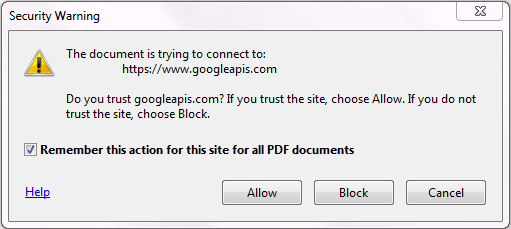
The user experience will differ depending on the version of Reader (or Acrobat) being used and if you are using Reader standalone or the browser plugin. With the standalone Reader expect to see a popup message like;Selecting allow with "Remember this action ..." selected will add the site to "Always Allow" list under Edit ... Preferences ... Trust Manager ... "Internet Access from PDF Files outside the web browser" ... Change Settings. This dialog has options to always allow or always block, and the option to remove googleapis.com once you have finished playing with this sample.
Retaining state during a xfa.form.remerge();
When we click the Search (or More) button the atom feed is loaded into the default data connection and an xfa.form.remerge() is called to bind up the results. Calling remerge means all properties that are not bound to the data connection revert to their original values. So if a form object starts off being invisible and we make if visible at some point then calling remerge reverts it to invisible.A way of retaining the form state is to set up a separate dataset and bind to that. I have done this by typing the definition into the XML Source view. So this form has the following data structure;
<xfa:datasets xmlns:xfa="http://www.xfa.org/schema/xfa-data/1.0/">
<xfa:data xfa:dataNode="dataGroup"/>
<FormState>
<SearchTerms/>
<Feed/>
<AllinUrl>
<Value>0</Value>
</AllinUrl>
<IncludeDuplicates>
<Value>0</Value><!-- 0 for not included, otherwise 1 -->
<Count>0</Count>
<Presence>hidden</Presence>
</IncludeDuplicates>
<Results>
<Presence>hidden</Presence>
</Results>
<DidYouMean>
<Presence>hidden</Presence>
<Text/>
<ToolTip/>
</DidYouMean>
<MoreButton>
<Presence>hidden</Presence>
<StartIndex>0</StartIndex>
</MoreButton>
</FormState>
<dd:dataDescription xmlns:dd="http://ns.adobe.com/data-description/" dd:name="feed">
<xfa:data xfa:dataNode="dataGroup"/>
<FormState>
<SearchTerms/>
<Feed/>
<AllinUrl>
<Value>0</Value>
</AllinUrl>
<IncludeDuplicates>
<Value>0</Value><!-- 0 for not included, otherwise 1 -->
<Count>0</Count>
<Presence>hidden</Presence>
</IncludeDuplicates>
<Results>
<Presence>hidden</Presence>
</Results>
<DidYouMean>
<Presence>hidden</Presence>
<Text/>
<ToolTip/>
</DidYouMean>
<MoreButton>
<Presence>hidden</Presence>
<StartIndex>0</StartIndex>
</MoreButton>
</FormState>
<dd:dataDescription xmlns:dd="http://ns.adobe.com/data-description/" dd:name="feed">
Now in the code we can reference these values using an somExpression like;
xfa.datasets.FormState.Feed.value
We can also use the setProperty element to bind directly to the property, so the DidYouMean subform XML Source looks like;
<subform w="199mm" name="DidYouMean">
<setProperty target="presence" ref="!FormState.DidYouMean.Presence"/>This means if a spelling correction comes back from the Google search we can set the value in our FormState dataset to visible, call remerge, and the subform will appear.
Default Button
All the other form technologies I have used have allowed you to specify a default action when the enter key is pressed during form filling. This wouldn’t work for multi-lined text fields and that maybe why a default was not implemented. But in a simple form like this it can be useful, and is easy to implement now we have event propagation. Pressing the enter key will cause the exit event to fire, with a commitKey value of 2. So if we add the following code to the exit event of the Search Term field we can start the search when the enter key is pressed.if (xfa.event.commitKey === 2)
Button.Search.execEvent("click");
}
Binary Result Data
You might want to try and return a binary response, such as the .PNG data of an image, but this does not appear to work. If you get any response at all it is only the first few characters.To update pictures in a form you will probably have to base64 encode them on the server first.
Sample
The sample XDP template, fragments, images and schema files can be downloaded in the zip file GoogleSearch.zip. You don't necessarily need to define a XML Schema, but in this case it helped me understand what the response will look like.If you just want to play with the sample download GoogleSearch.pdf.
Friday, 11 July 2014
Yet another way of looping though a list of form nodes
SpiderMonkey JavaScript 1.7 (the JavaScript engine used in Firefox and Adobe Reader) introduced an Iterator extension. This is not available in other browsers but we don't need to worry about that. With a custom Iterator we can loop though form nodes using for ... in statement;
An iterator is used by assigning a generator function to the __iterator__ method, so the NodeIterator object used above looks like;
function NodeIterator(node)
{
var nodeList = node.parent.resolveNodes(node.name + "[*]");
var limit = nodeList.length;
var current = 0;
return {
__iterator__ : function ()
{
return {
next : function ()
{
if (current >= limit) throw StopIteration;
return nodeList.item(current++);
}
}
}
}
}
The problem with this is the StopIteration exception gets thrown when we get to the end of the list. This probably won't be a problem for the end user but is a pain for the developers who will typically have the "When exception thrown" option set to break.
We can hide this by adding a forEach method similar to the one available for an array. For example to sum the values of an array we can do;
Similarly we can now sum up all the values of all the numeric fields called NumericField using;
Or process all the fields of the same type using the NodeClassIterator
It may still be better to use the good old for loop, the main advantage of using this technic is it hide some of the XFA stuff. But maybe if you have some rule regarding all rows with a a quantity value greater than 100 then it would be good to put this logic in the one place.
Here's a sample form using the approach, CustomIterator.pdf.
for (var field in XFAUtil.NodeIterator(NumericField))
{
console.println(field.somExpression + " has a value of " + field.rawValue);
}
{
console.println(field.somExpression + " has a value of " + field.rawValue);
}
An iterator is used by assigning a generator function to the __iterator__ method, so the NodeIterator object used above looks like;
function NodeIterator(node)
{
var nodeList = node.parent.resolveNodes(node.name + "[*]");
var limit = nodeList.length;
var current = 0;
return {
__iterator__ : function ()
{
return {
next : function ()
{
if (current >= limit) throw StopIteration;
return nodeList.item(current++);
}
}
}
}
}
The problem with this is the StopIteration exception gets thrown when we get to the end of the list. This probably won't be a problem for the end user but is a pain for the developers who will typically have the "When exception thrown" option set to break.
We can hide this by adding a forEach method similar to the one available for an array. For example to sum the values of an array we can do;
var total = 0;
[1,2,3,4].forEach(function(v) { total += v; });
console.println(total); // prints 10
[1,2,3,4].forEach(function(v) { total += v; });
console.println(total); // prints 10
Similarly we can now sum up all the values of all the numeric fields called NumericField using;
var total = 0;
XFAUtil.NodeIterator(NumericField).forEach(function(v) { total += v.rawValue; });
total;
XFAUtil.NodeIterator(NumericField).forEach(function(v) { total += v.rawValue; });
total;
Or process all the fields of the same type using the NodeClassIterator
var total = 0;
XFAUtil.NodeClassIterator(CheckBox1).forEach(function(v) { if (v.rawValue === 1) total++; });
MessageText.presence = (total >= 2) ? "hidden" : "visible"
XFAUtil.NodeClassIterator(CheckBox1).forEach(function(v) { if (v.rawValue === 1) total++; });
MessageText.presence = (total >= 2) ? "hidden" : "visible"
It may still be better to use the good old for loop, the main advantage of using this technic is it hide some of the XFA stuff. But maybe if you have some rule regarding all rows with a a quantity value greater than 100 then it would be good to put this logic in the one place.
Here's a sample form using the approach, CustomIterator.pdf.
Thursday, 3 July 2014
Adobe LiveCycle Designer Tip #5 - Palette Control
Designer has 16 different palettes, a design surface and a script editor window. In an ideal world we would have two screens so we can spread them all out.
For those of us with only one screen moving from palette to palette can be a pain. If you have them docked at the sides then you'll need to click the 'thumb' controls to expand, which I find a bit of a small target to click on.

What I find easier is to have the palettes in one palette window. I have the Hierarchy, Data View, Style Catalog, Info, Font, Paragraph, Drawing Aids, Style Catalog on the left and Object, Layout, Border, Accessibility, Object Library, Fragment Library on the right.
To drag a palette onto another palette window drag the palette tab (not the palette title bar) on top of the target palette.

You can then end up with a layout looking like;

Which gives me a bigger target to click on.
For those of us with only one screen moving from palette to palette can be a pain. If you have them docked at the sides then you'll need to click the 'thumb' controls to expand, which I find a bit of a small target to click on.
What I find easier is to have the palettes in one palette window. I have the Hierarchy, Data View, Style Catalog, Info, Font, Paragraph, Drawing Aids, Style Catalog on the left and Object, Layout, Border, Accessibility, Object Library, Fragment Library on the right.
To drag a palette onto another palette window drag the palette tab (not the palette title bar) on top of the target palette.
You can then end up with a layout looking like;
Which gives me a bigger target to click on.
Subscribe to:
Comments (Atom)